HubSpot | AWSsome Deal Registration setup guide
Setup guide for AWSsome Deal Context
AWSsome Deal Context connects your HubSpot deals to AWSsome, your AWS Marketplace co-sell and deal registration platform. It lets you:
- Bring HubSpot deals into AWSsome for AWS co-sell. Qualifying deals from the HubSpot pipelines you choose land in an approval queue, ready to review and submit to AWS.
- See AWS context without leaving HubSpot. A card on each deal record shows the deal's AWS status, AWS engagement score, your AWS Account Manager, recommended next steps and private offers.
Install the app
- Log in to AWSsome. https://[your-environment].awssome.io
- Go to Integrations and click the Connect HubSpot button.
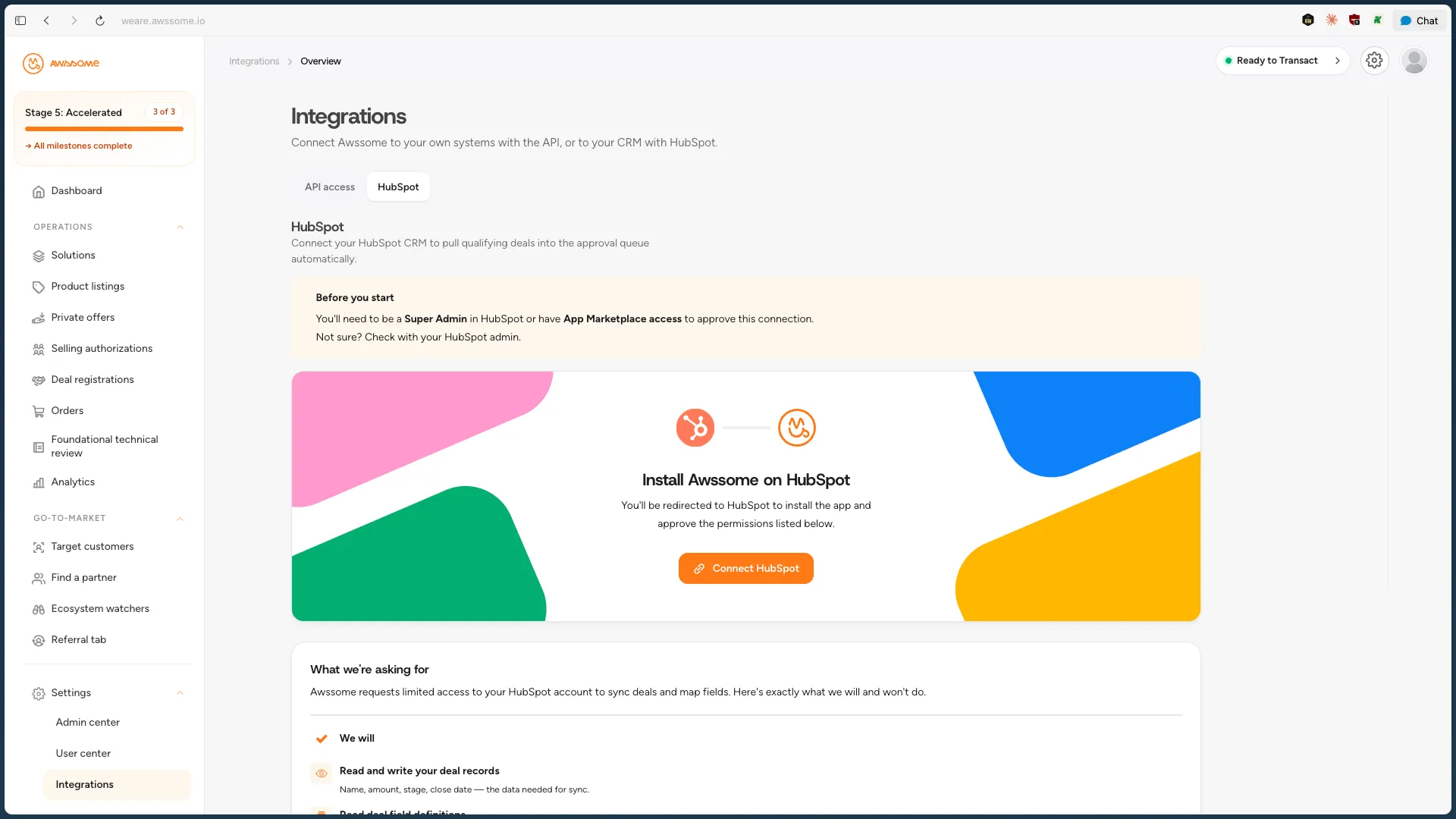
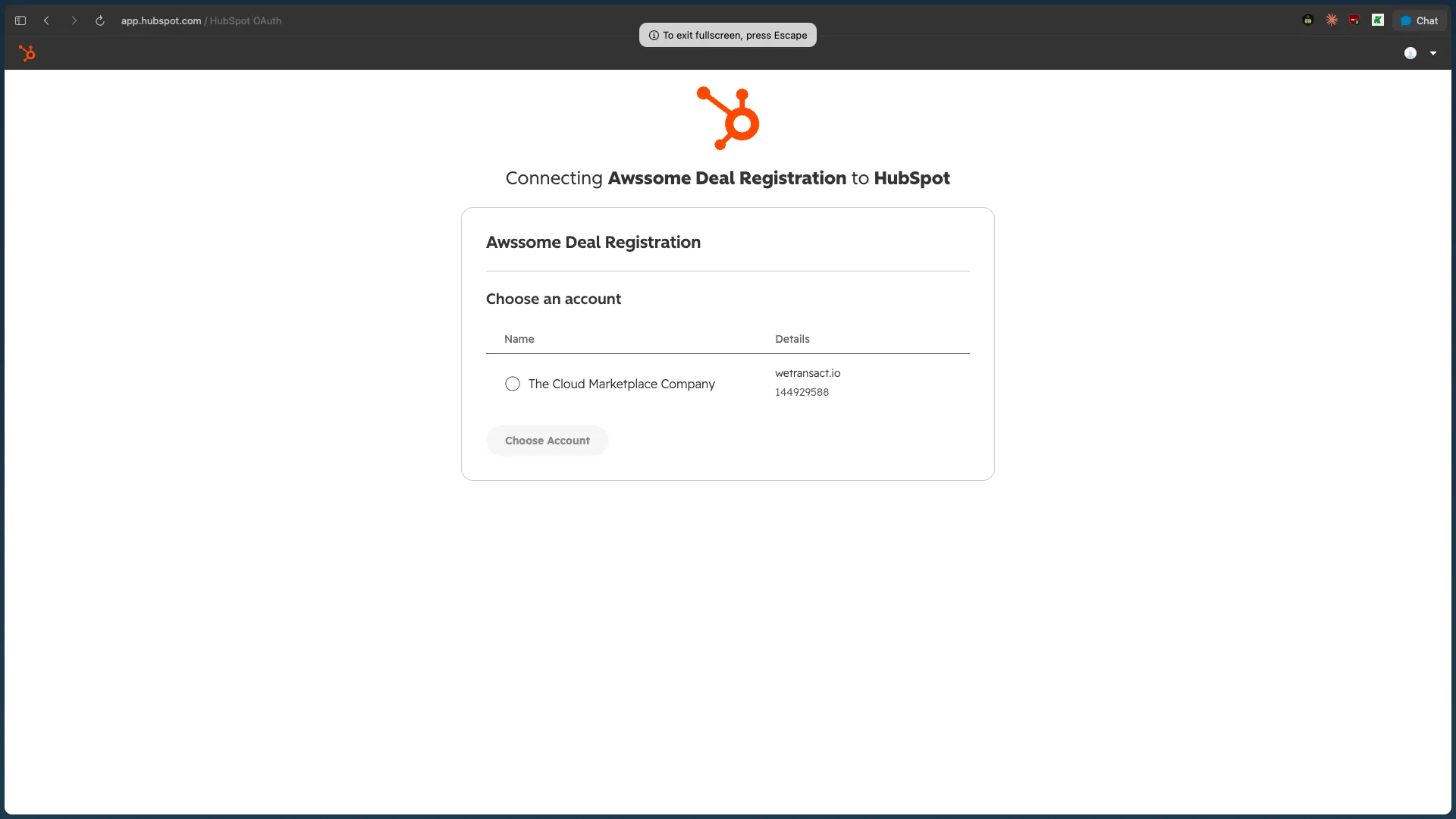
- Select the account you want to use for the connection and click Choose Account button
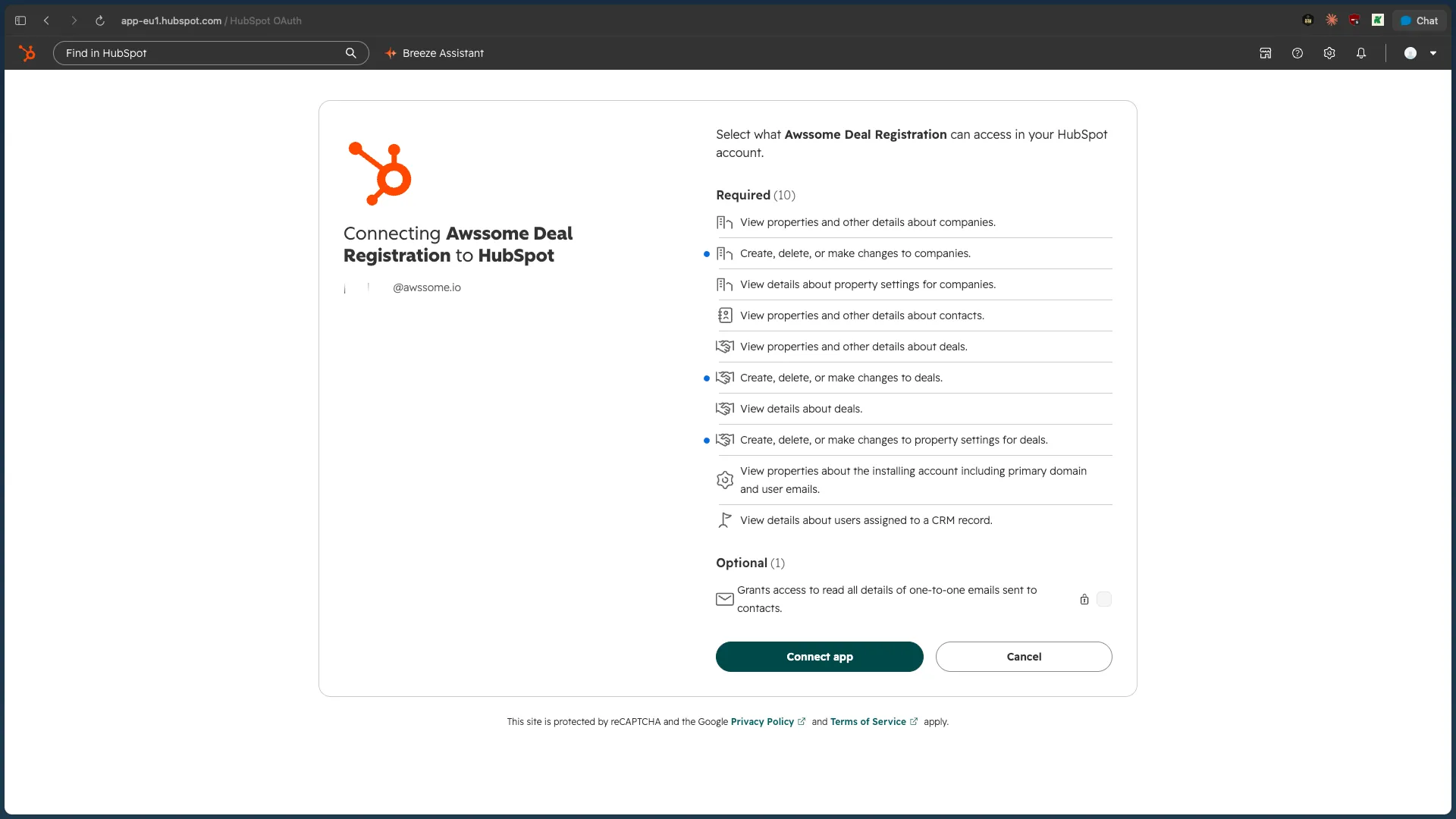
- Review the permissions on the HubSpot approval screen and click Connect App
You're redirected back to AWSsome, and the setup wizard starts.
Configure the app
- In the setup wizard, map your HubSpot deal fields to the fields AWS requires.
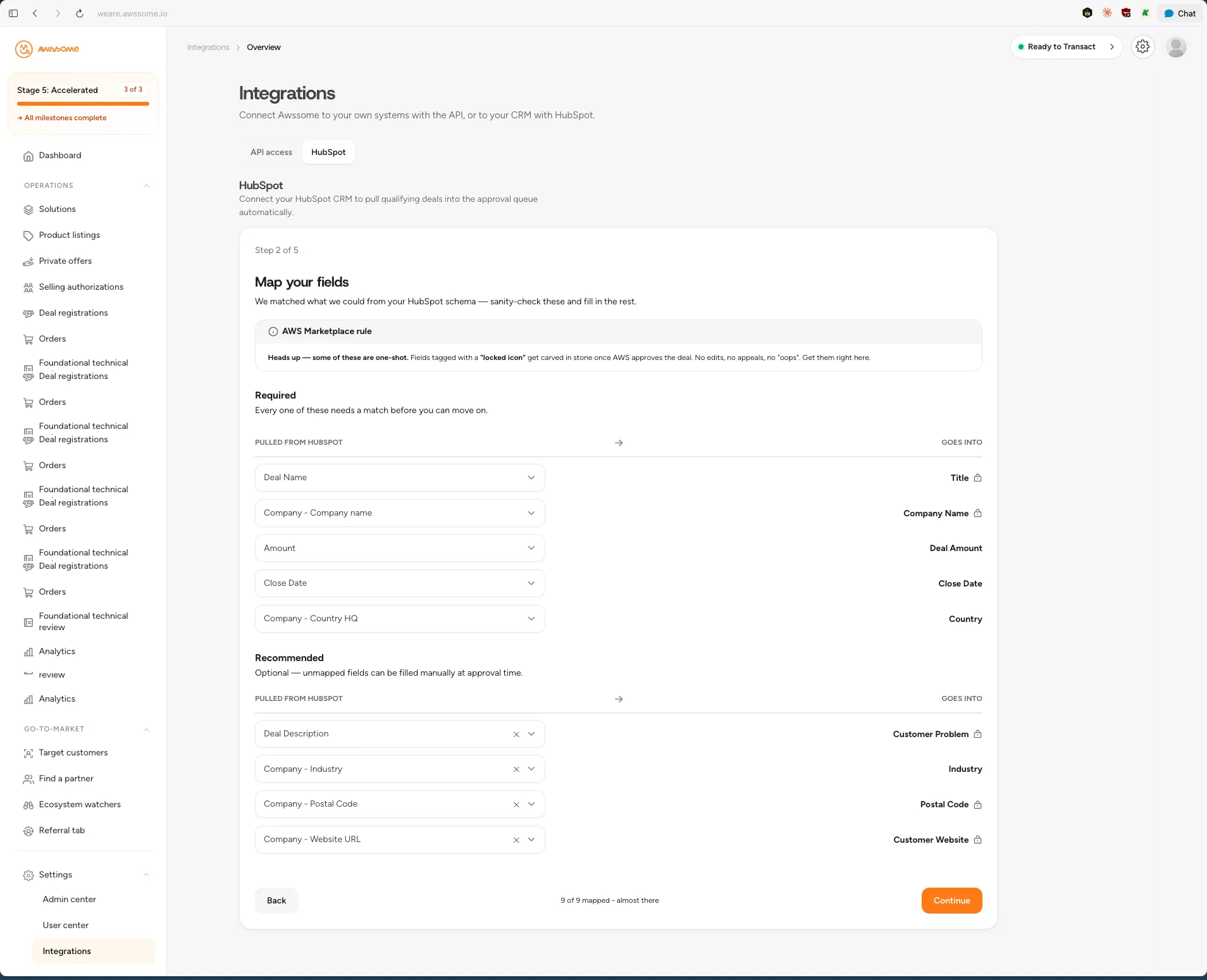
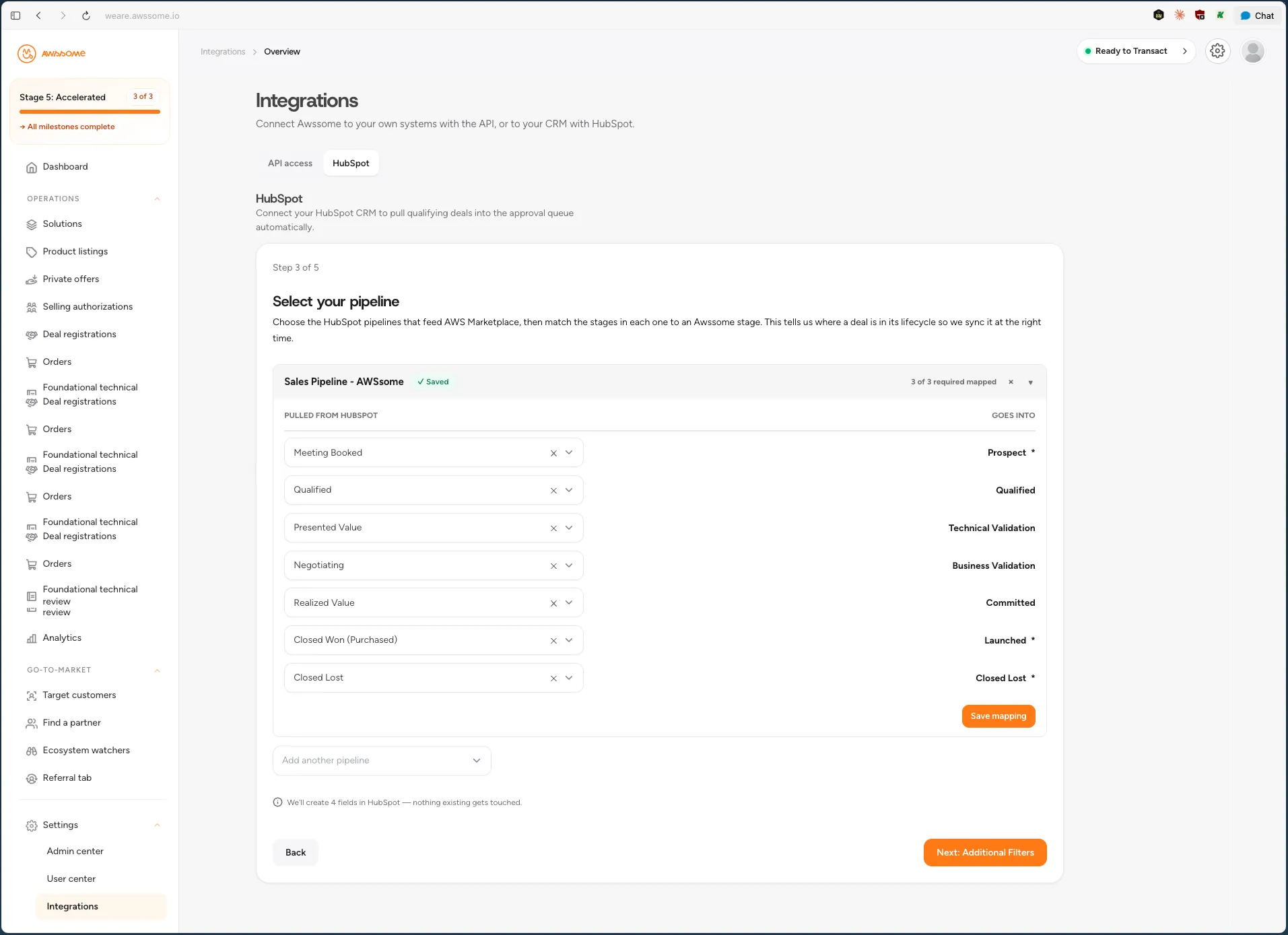
- Select up to 3 HubSpot pipelines and map each pipeline's stages to AWS stages.
- When you're done, click Next: Additional Filters button
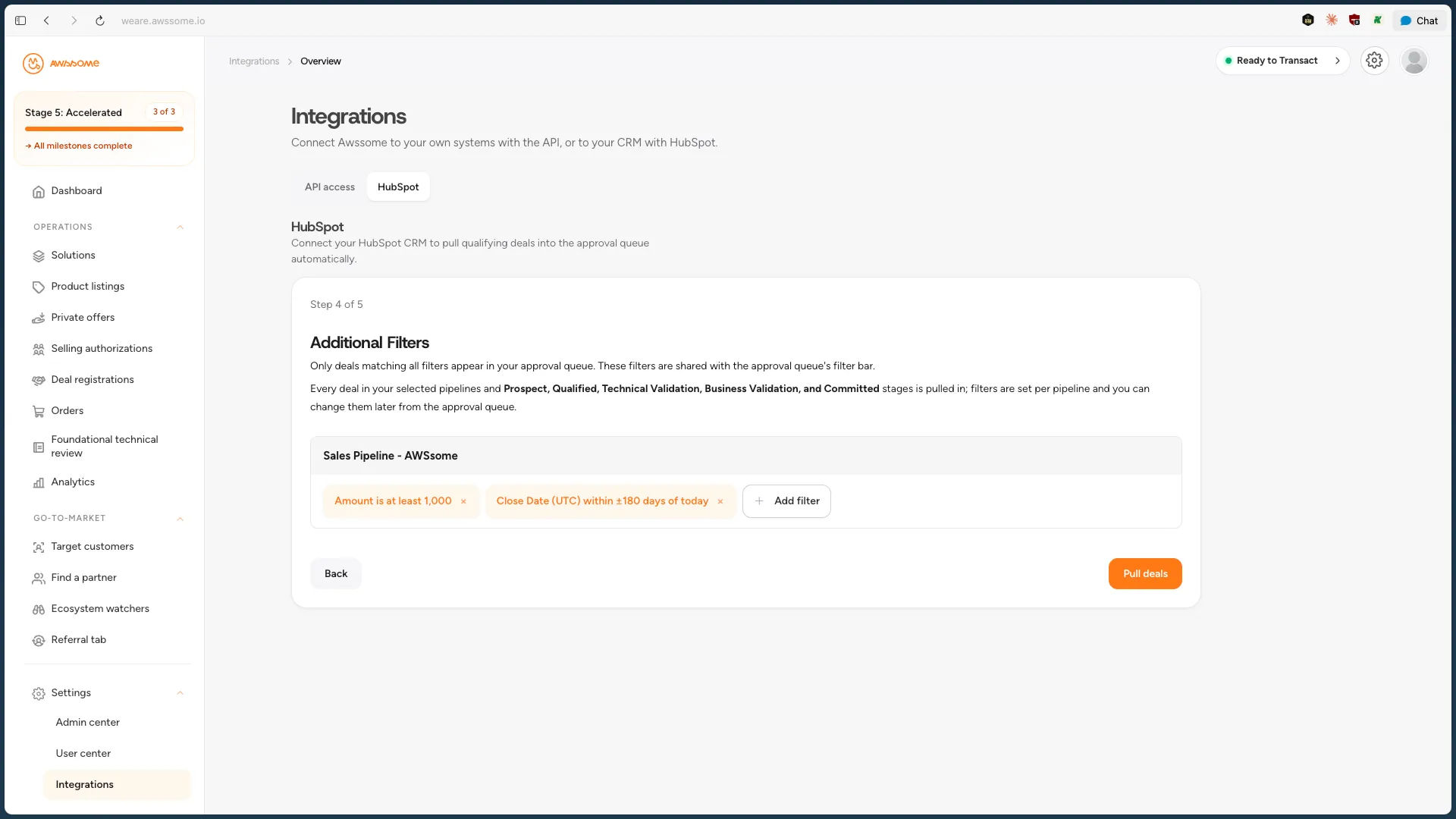
- Set optional filters for each pipeline and click Pull Deals button
- Review the sync preview.
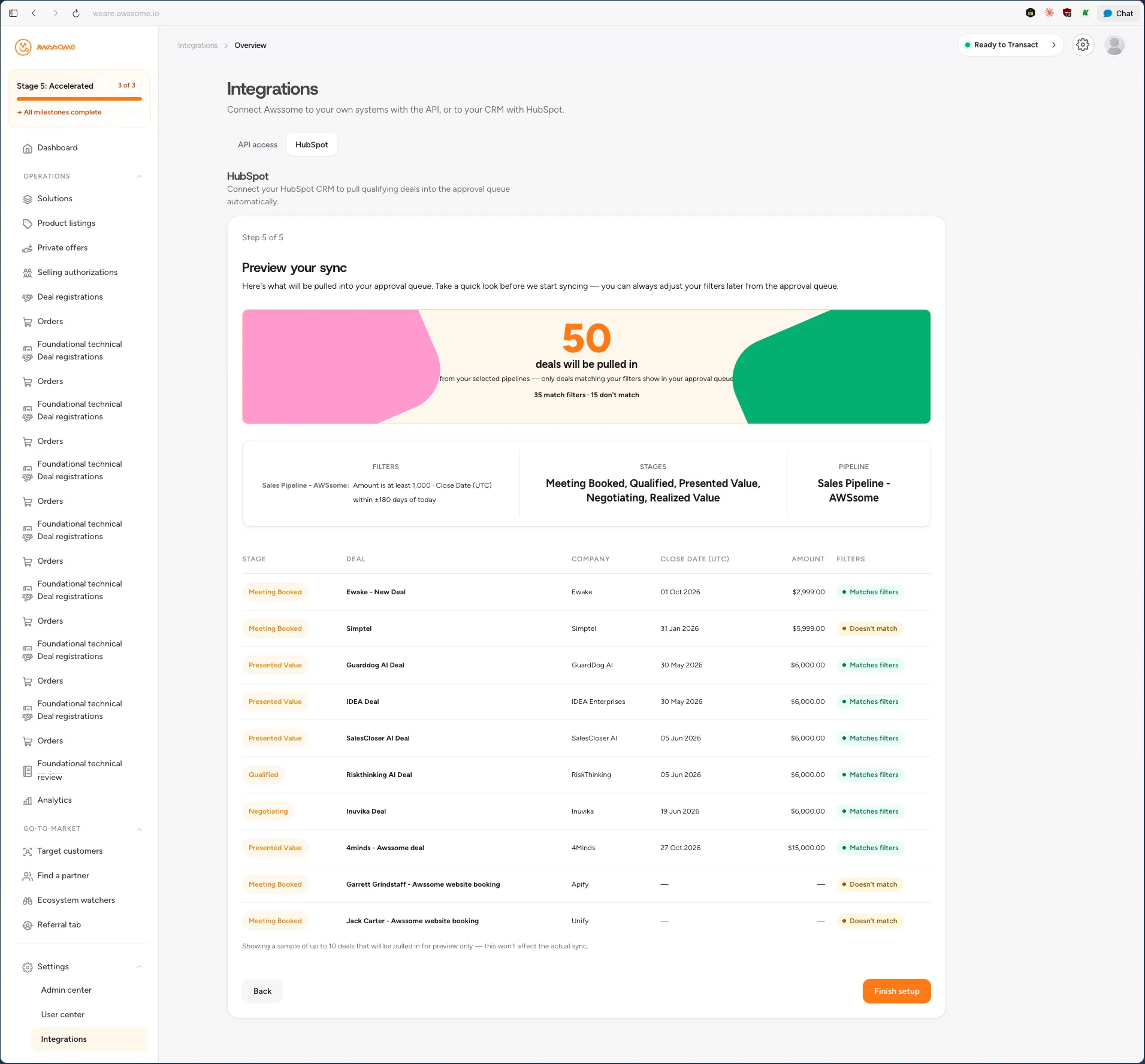
- Click Finish setup button.
- Click Go to approval queue button
Configure the AWSsome deal context card
- Navigate to HubSpot -> Deals
- Open any deal and click on the Customize button
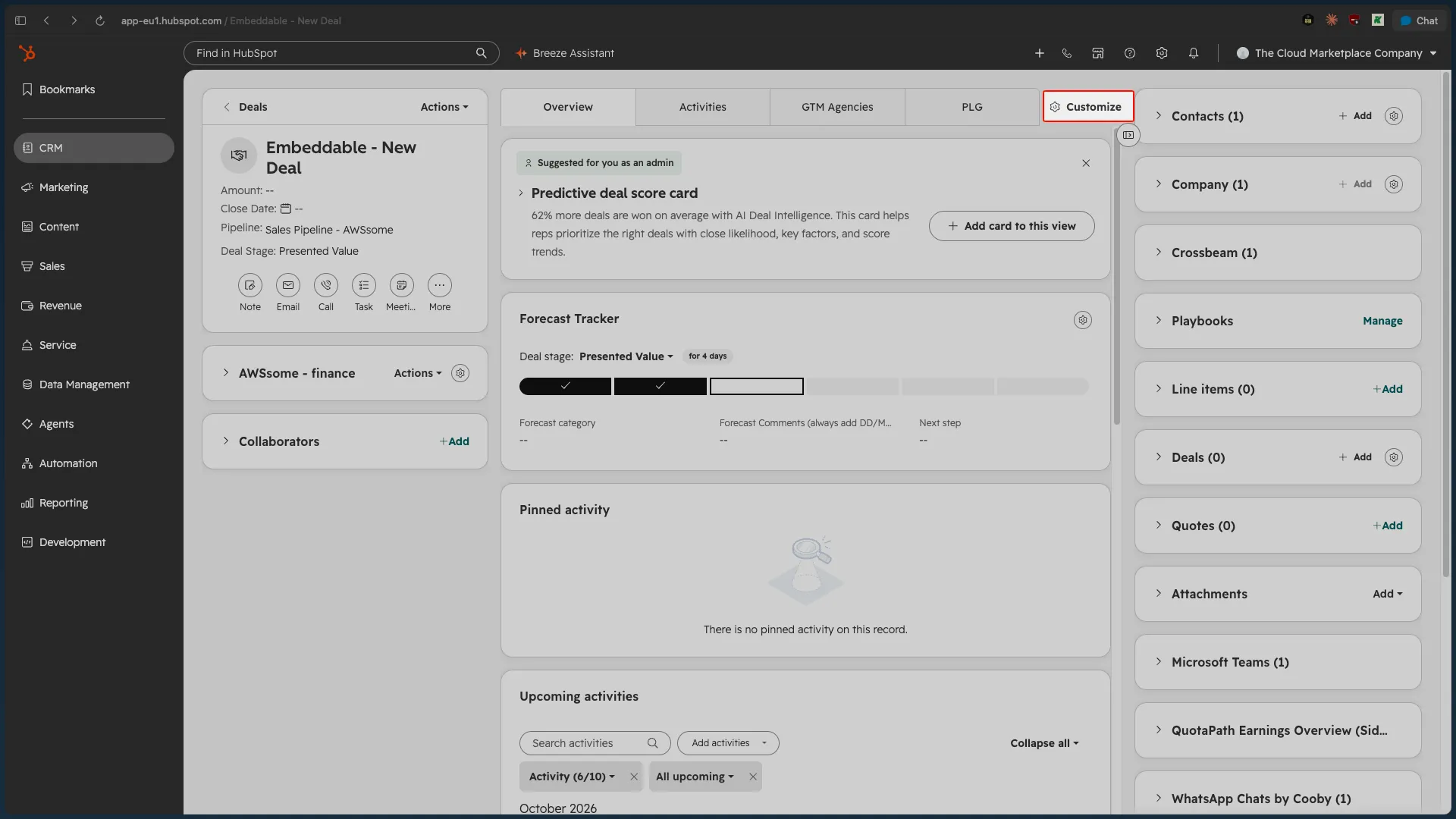
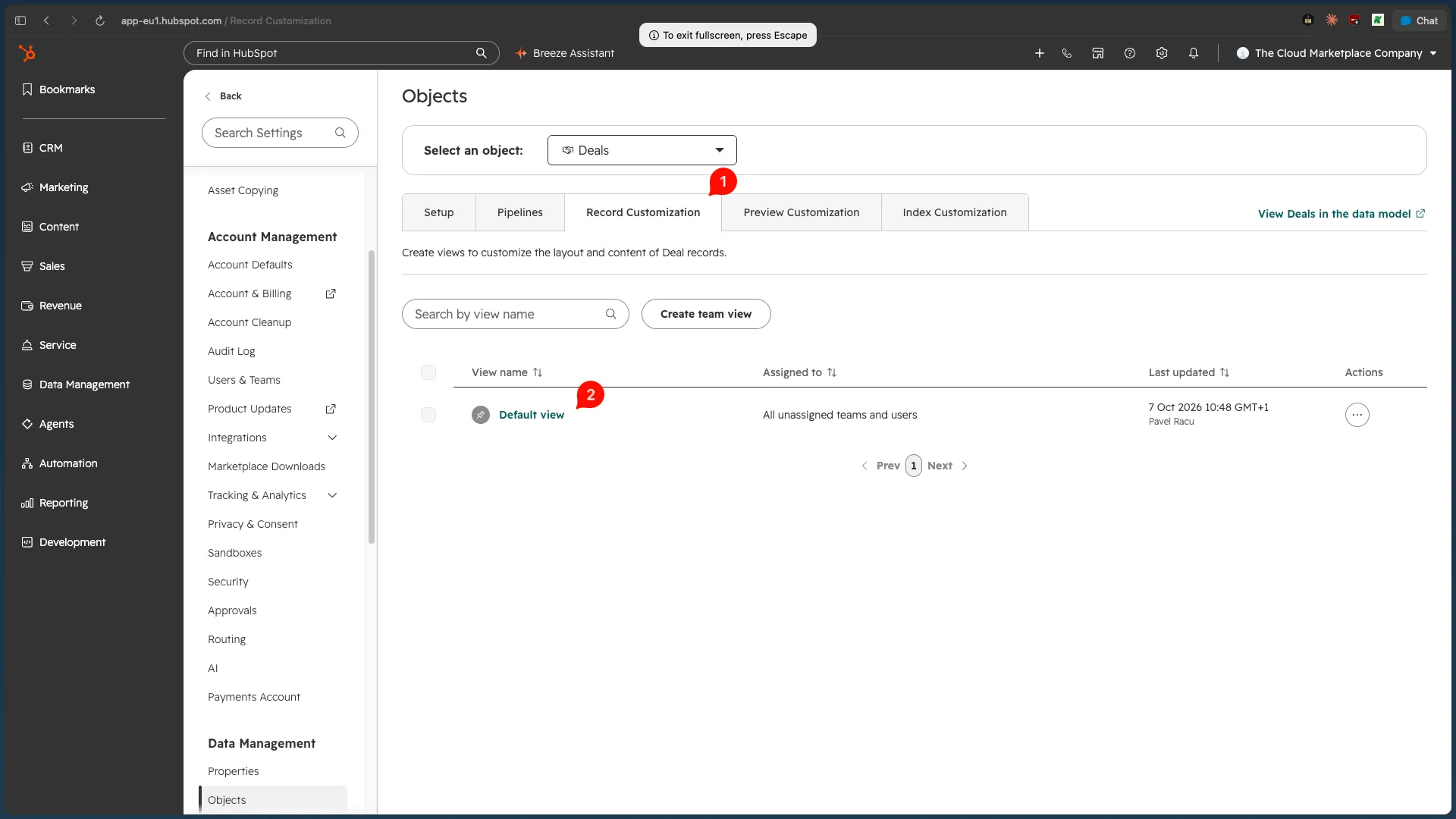
- Select the tab Record Customization and click on the Default view button
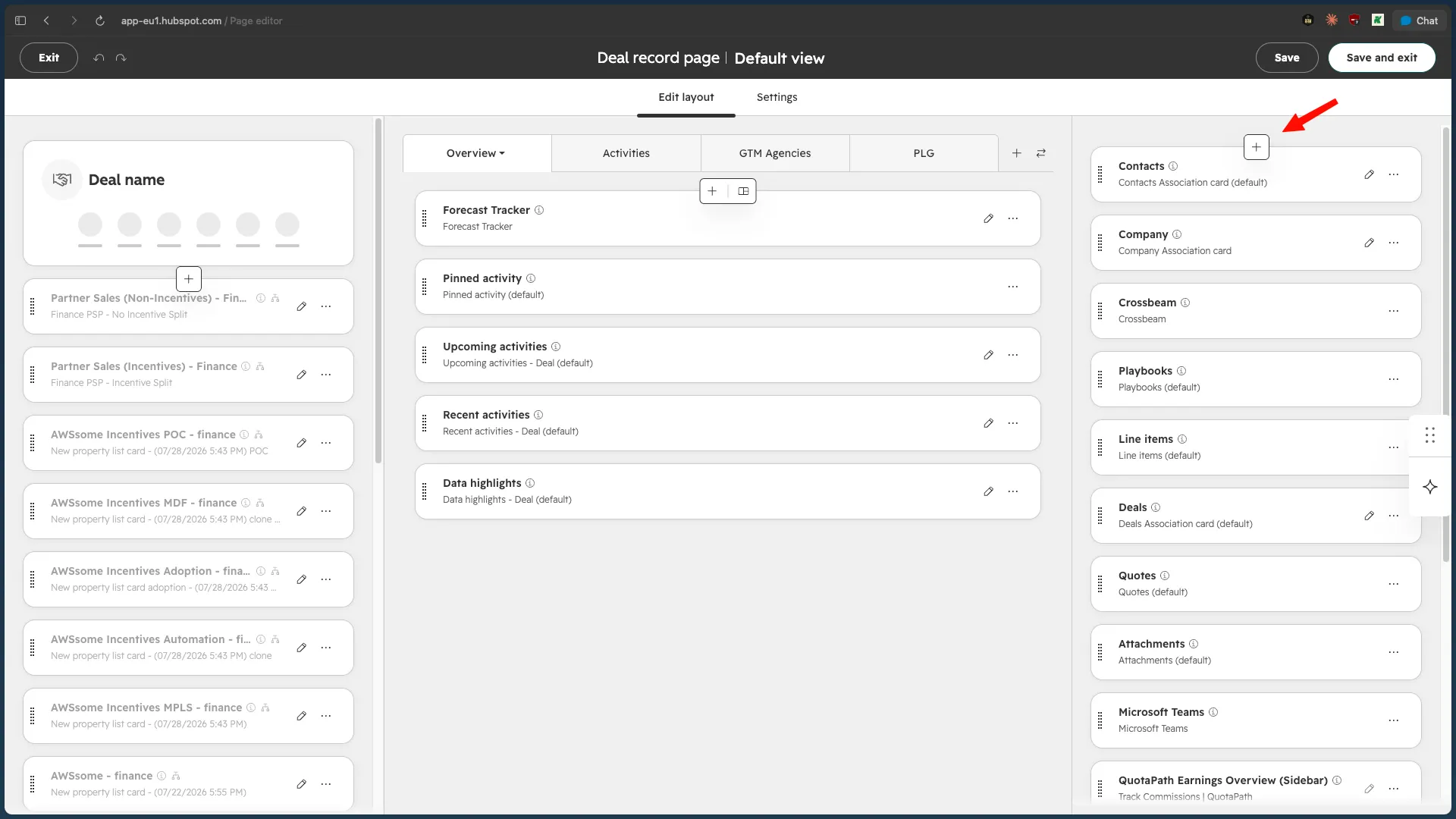
- Click on the button -> Card Library tab
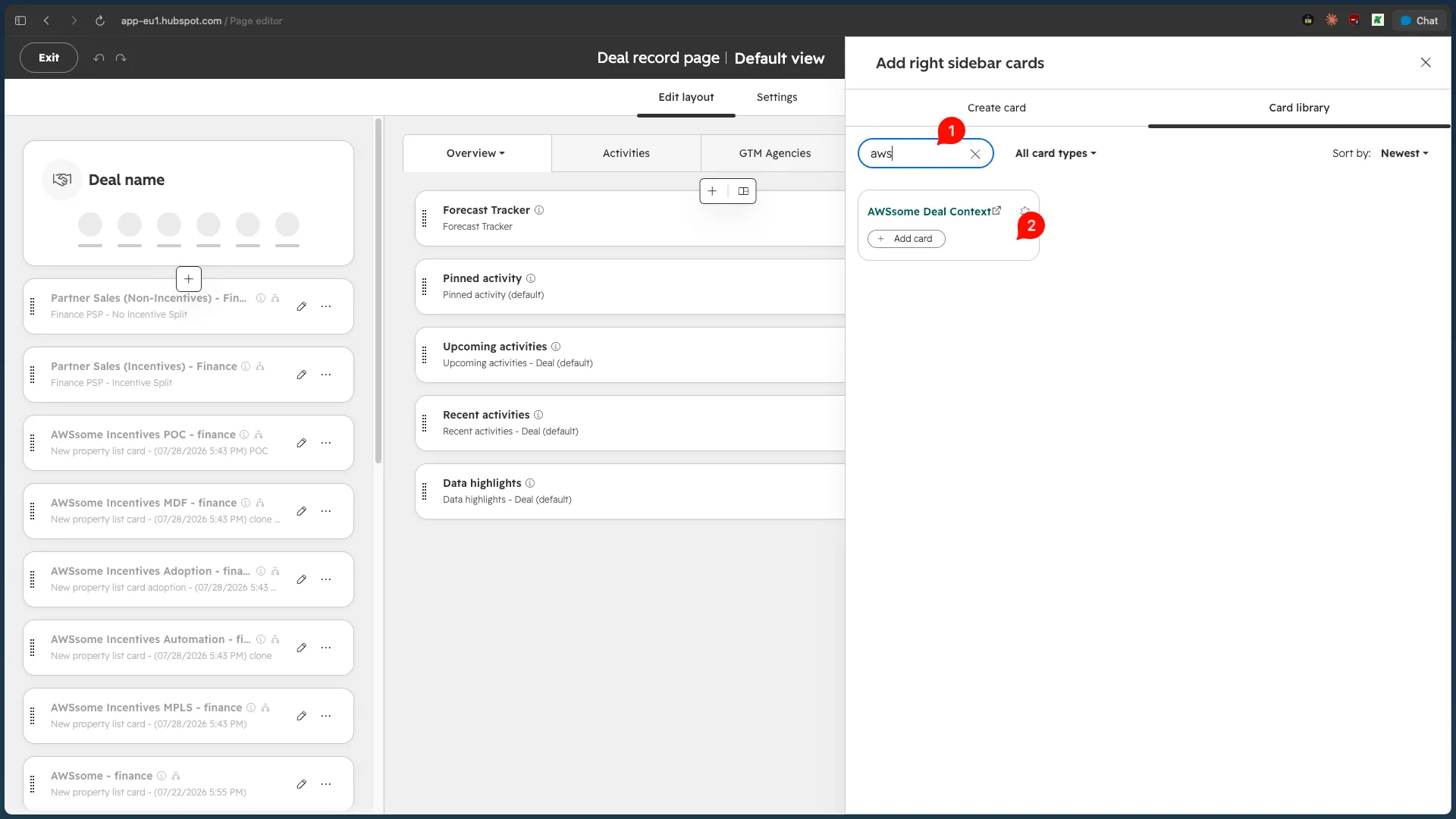
- Search for AWSsome in the search box, then click Add Card
- Close the side panel and check if the AWSsome Deal Context card shows up in the card list at the top. Click Save and exit button to save the changes
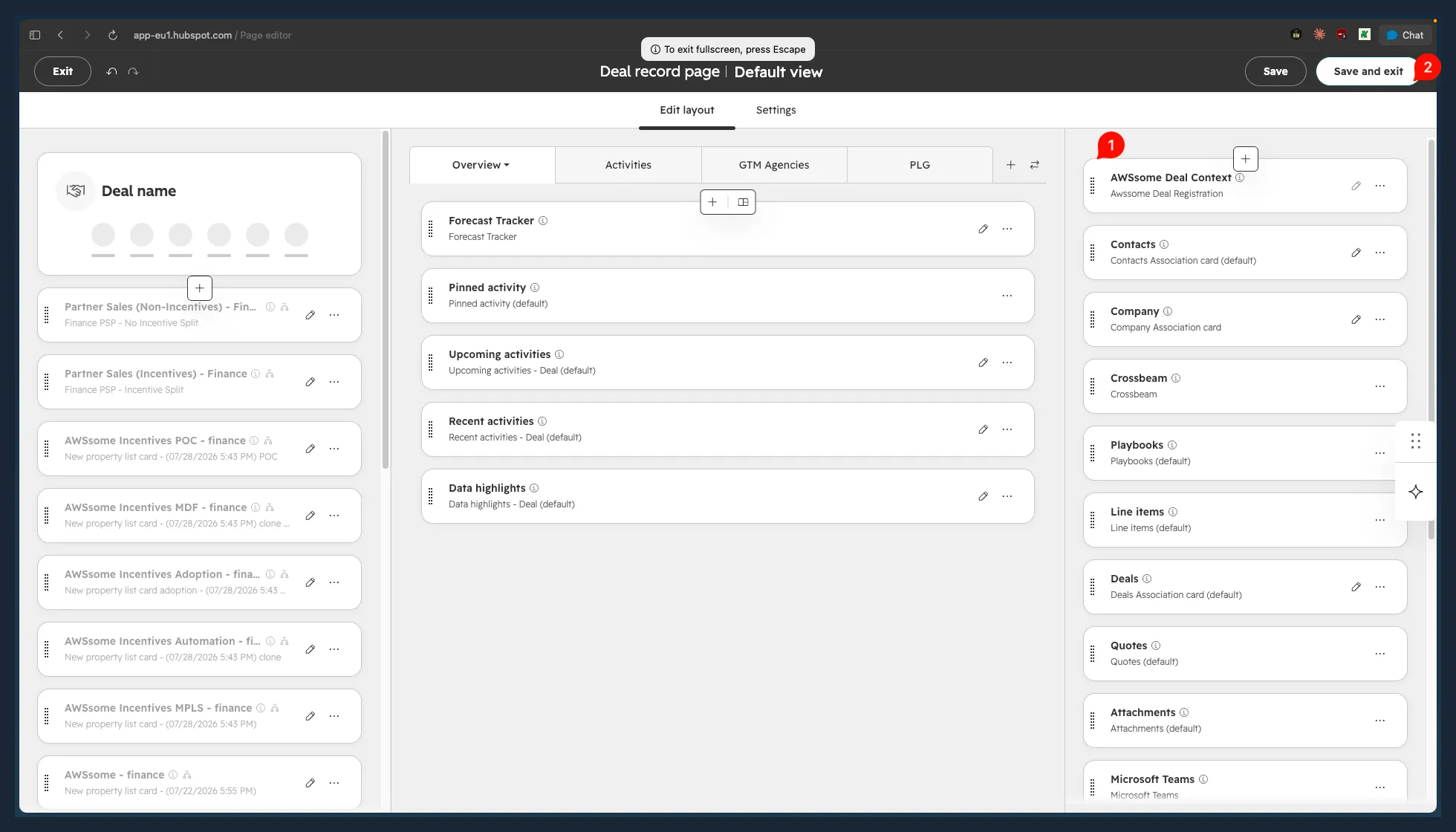
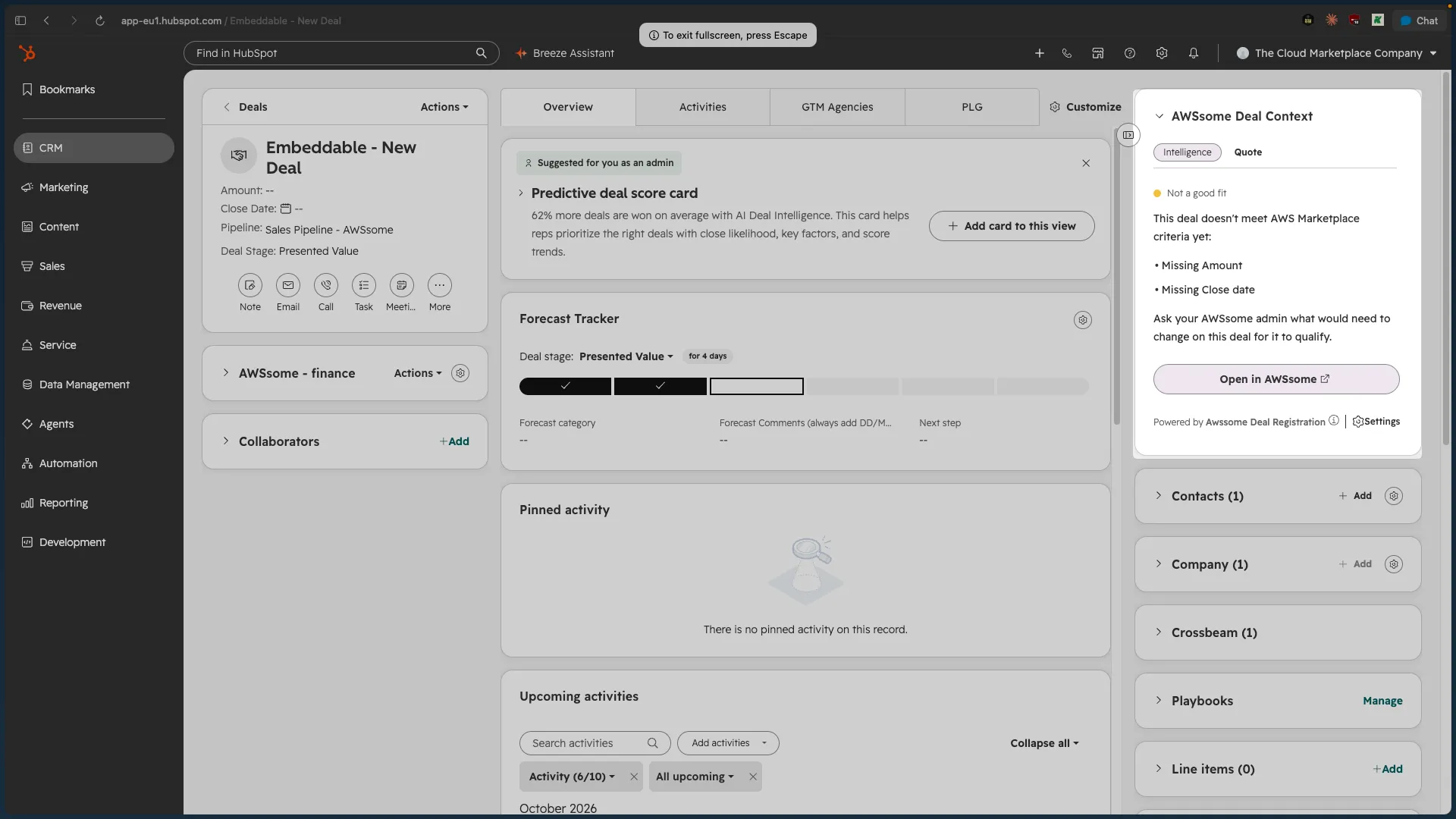
- You should see the AWSsome Deal Context card on the deal screen
Use the app
The AWSsome Deal Context card sits in the sidebar of every HubSpot deal. It shows where the deal stands in AWSsome and with AWS. Once AWS approves the deal, you can use it to improve the deal with AI.
Deals are submitted to AWS from AWSsome, not from HubSpot. Deals from your connected pipelines sync into the HubSpot deal queue in AWSsome. There, your AWSsome admin reviews each deal, completes it and deal in the AWSsome dashboard.
What the card shows
State | What it means |
|---|---|
Not synced into AWSsome | The deal hasn't been pulled into AWSsome yet. It syncs automatically. |
Not a good fit | The deal doesn't meet the AWS Marketplace criteria your admin set in AWSsome, such as amount or close date. The card lists the reasons. |
Waiting for internal approval | The deal is in the HubSpot deal queue in AWSsome, waiting for your admin to review and submit it. |
Submitted to AWS | AWS is reviewing the deal, which usually takes a few business days. The card lists what unlocks after approval. |
Action needed from you | AWS approved the deal but needs details fixed, such as amount, subscription start date or close date. Click Update deal in AWSsome. |
Rejected by AWS | AWS didn't move the deal forward. Click Revise and resubmit in AWSsome. |
When AWS approves the deal, the card shows:
- Opportunity quality score (0–100), generated by AWS, with its reasoning.
- Help me improve the score. Our AI agent uses the deal context, the company website and the deal's email exchanges (if you granted email permission) to propose better values for:
- Customer business problem
- Customer use case
- Next steps
- Primary needs from AWS
- Industry
Pick the suggestions you want and click Update deal. The updates are sent straight to AWS.
- Recommendation and next best action from AWS.
- AWS Marketplace engagement score: how likely the customer is to buy through AWS Marketplace.
- Deal intelligence: three AI signals generated from public data: transactable, committed spend, and procurement-led.
- Your AWS Account Manager, with a ready-to-send intro email.
- Send private offer, which opens the Quote tab with the deal's private offers.
Disconnect the app
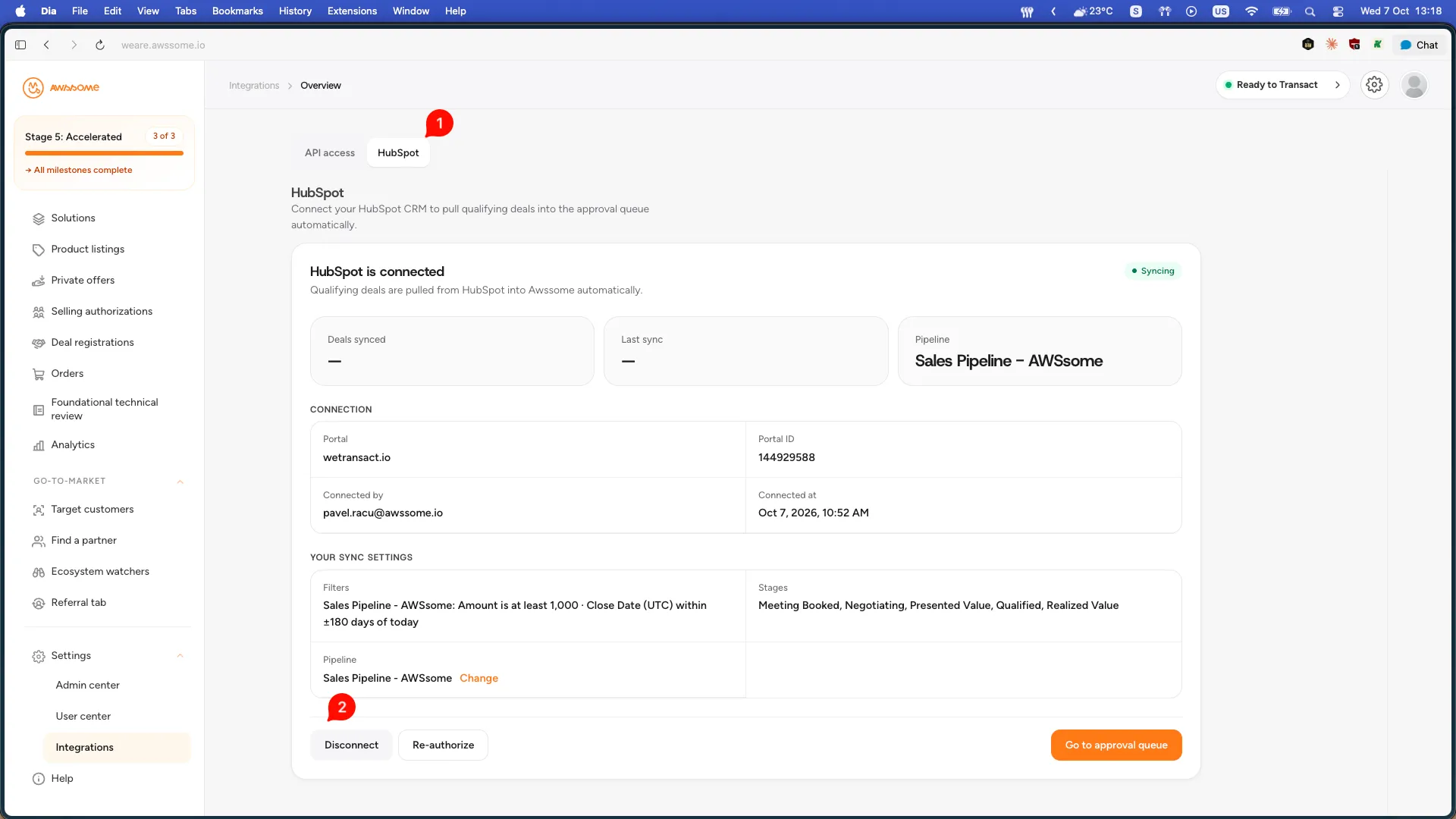
- Go to Integrations -> HubSpot and click the Disconnect button.
- Click Yes, disconnect.
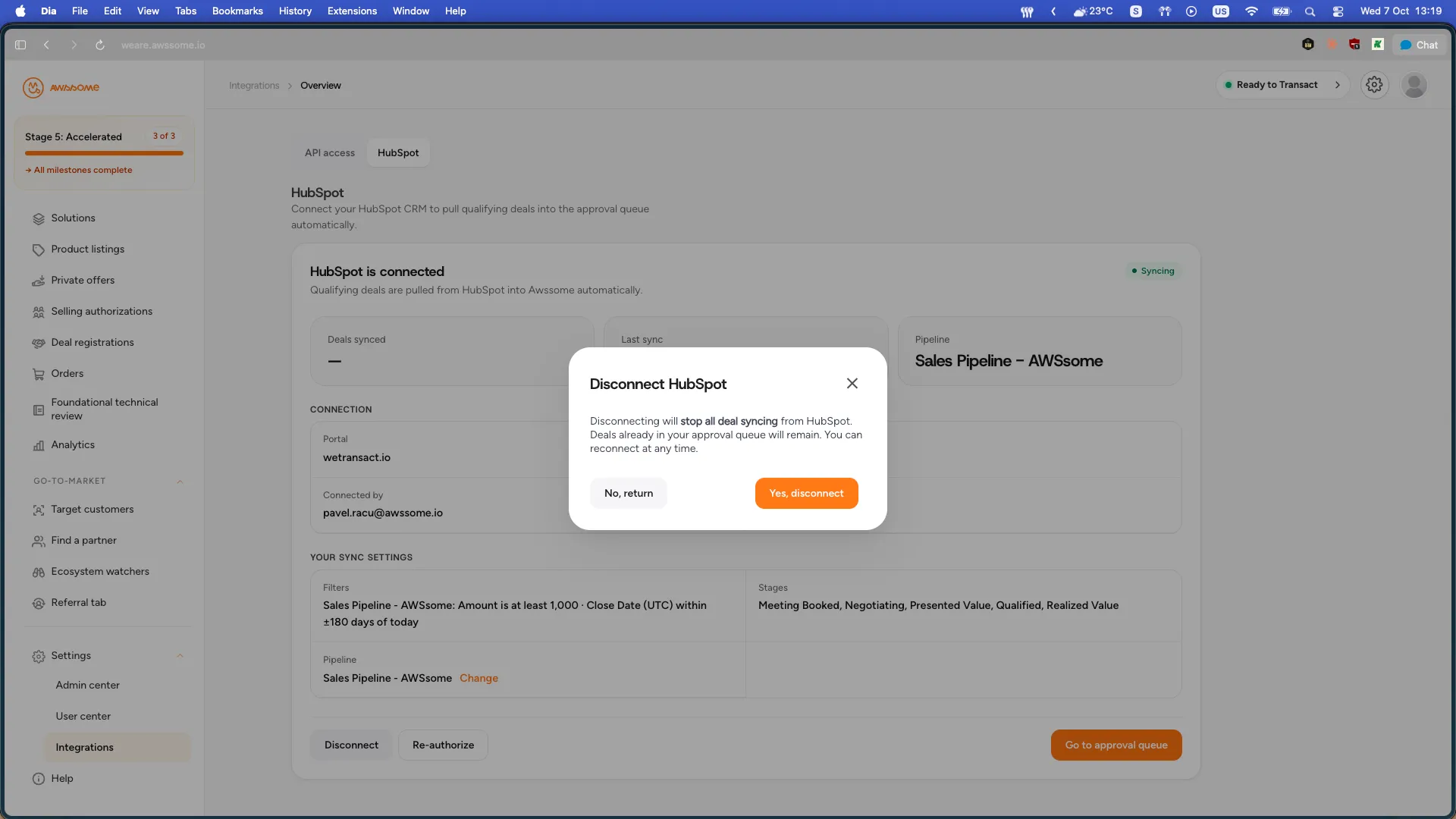
Note: If you disconnect your HubSpot account from AWSsome Deal Context, AWSsome deals data will no longer sync to HubSpot deals & companies and vice versa. Existing data will remain on your HubSpot records.
Uninstall the app
To uninstall AWSsome Deal Context from your HubSpot account, follow the instructions in this HubSpot Knowledge Base article.